https://omg10.com/4/11341387 HSRoracentre: Finance- General
Showing posts with label Finance- General. Show all posts

Monday, 15 September 2025

How to Create an ESS Job for a BI Report in Oracle Fusion


How to Create an ESS Job for a BI Report in Oracle Fusion


How to Create an ESS Job for a BI Report in Oracle Fusion

If you are working with Oracle Fusion Applications, you might often need to schedule or automate BI Publisher reports. This is done by creating an ESS (Enterprise Scheduler Service) job for the BI report. In this blog, we will walk through the step-by-step process of creating an ESS job for a BI report in Fusion with best practices.

What is ESS in Oracle Fusion?

ESS (Enterprise Scheduler Service) is the job scheduling framework in Oracle Fusion. It allows you to run, schedule, and monitor background processes like:

  • BI Reports

  • Data loads

  • Batch jobs

  • Integrations

Using ESS, you can automate BI Publisher report execution and distribute outputs in formats like Excel, PDF, or CSV.

Prerequisites

Before creating the ESS job, make sure you have:

  • Access to BI Publisher (Reports & Analytics).

  • A saved BI Report in a custom or shared folder.

  • Role with BI Administrator / ESS Administrator privileges.

Steps to Create an ESS Job for a BI Report


1. Create the BI Report

  1. Login to Oracle Fusion → Tools → Reports and Analytics.

  2. Create or open the BI Publisher report you want to schedule.

  3. Save the report in a custom folder (not seeded folders).


How to Create an ESS Job for a BI Report in Oracle Fusion

How to Create an ESS Job for a BI Report in Oracle Fusion


2. Note the Report Path

  • Go to Catalog.

  • Right-click the report → Click Properties.

  • Copy the Report Path (e.g., Shared Folder/Custom/Report Name.Xdo).

How to Create an ESS Job for a BI Report in Oracle Fusion


3. Create the ESS Job Definition

  1. Navigate: Setup and Maintenance → Search: Manage Enterprise Scheduler Job Definitions and Job Sets.

  2. Click Create New Job Definition.

  3. Fill the details:

    • Name: Report Name

    • Display Name: Report Display Name

    • Job Type: BIPJobType (for BI Reports)

    • Parameter List: Enter if the report has parameters.

    • Report Path: Paste the BI Report path copied earlier.

    • Output Format: PDF / Excel / CSV as needed.


How to Create an ESS Job for a BI Report in Oracle Fusion


How to Create an ESS Job for a BI Report in Oracle Fusion


How to Create an ESS Job for a BI Report in Oracle Fusion


How to Create an ESS Job for a BI Report in Oracle Fusion


4. Save and Deploy

  • Click Save and Close.

  • Your ESS Job is now available in the Fusion scheduler.


How to Create an ESS Job for a BI Report in Oracle Fusion


How to Create an ESS Job for a BI Report in Oracle Fusion

5. Run the ESS Job

  1. Navigate: Tools → Scheduled Processes.

  2. Click Schedule New Process.

  3. Search by the Display Name you created.

  4. Provide input parameters (if any).

  5. Submit the process.

  6. Monitor under Scheduled Processes page to check status and download output.


How to Create an ESS Job for a BI Report in Oracle Fusion

How to Create an ESS Job for a BI Report in Oracle Fusion


How to Create an ESS Job for a BI Report in Oracle Fusion


Best Practices 

  • Always save BI reports in Custom Folder, not Oracle’s seeded folders.

  • Use clear job names for easy identification.

  • For recurring jobs, set Schedule Options (daily, weekly, monthly).

  • Test with small data before scheduling large reports.

Why use ESS for BI Reports?

  • Automates repetitive reporting tasks.

  • Reduces manual errors.

  • Ensures timely delivery of business reports.

  • Supports multiple output formats for different stakeholders.

Conclusion

Creating an ESS job for a BI report in Oracle Fusion makes reporting automated, reliable, and efficient. Whether you want daily sales data, monthly payroll, or inventory reports, ESS ensures your reports run on time without manual intervention.

By following the steps above, you can easily integrate BI Publisher reports into Fusion’s scheduler and streamline business reporting.

Sunday, 20 July 2025

How Access Works in Oracle Cloud ERP Modules


How Access Works in Oracle Cloud ERP Modules


How Access Works in Oracle Cloud ERP Modules


Introduction : How Access Works in Oracle Cloud ERP

Oracle Cloud ERP is designed with robust access and security controls to ensure that users can only interact with the data and tasks that are relevant to their role and responsibilities. Access in Oracle ERP is determined by a combination of role-based access control (RBAC), data security policies, and specific module-level configurations. This blog will explore how access works across various Oracle modules like GL, AP, AR, and FA.


Role-Based Access Control (RBAC) in Oracle

Oracle Cloud applications use RBAC ( role based access control) to manage access:

  • Job Roles determine what a user can do (e.g., Accountant, AP Specialist).

  • Data Roles determine what data a user can access.

  • Abstract Roles (like Employee or Contingent Worker) grant access to common functions.

Each module adds another layer of control via functional and data security policies.


Access in General Ledger (GL) — Data Access Sets

In GL, access to ledgers, balancing segment values, or management segment values is controlled using Data Access Sets.

Key Components:

  • Ledger Access: You can grant access to one or more ledgers.

  • Balancing Segment Access: Access can be limited by segment values (e.g., Company Codes).

  • Read or Write Access: Permissions can be restricted to view-only or full processing rights.

Use Case:

If a user should only post journals for a specific company, you would restrict their access using a Data Access Set with the relevant balancing segment value.


Access in Fixed Assets (FA) — Asset Books

In Oracle Assets, user access is managed through Asset Books.

Key Components:

  • Users are assigned access to specific asset books.

  • All transactions (additions, retirements, transfers) are limited to the books they have access to.

  • Segregation of access across legal entities or business units.

Use Case:

A user working on U.S. books should not have access to India-specific books. The role should only grant them access to U.S. books.


Access in Payables (AP) and Receivables (AR) — Business Units (BUs)

AP and AR access is largely determined by access to Business Units.

Key Components:

  • Users are assigned roles with access to specific BUs.

  • Additional segregation can be done through document security profiles (e.g., invoice or payment business functions).

Use Case:

If an AP Specialist should only process payments for one BU, assign their role to only that BU.


Other Module-Specific Access Examples

  • Procurement: Access based on Procurement BU and Requisition BU.

  • Projects: Controlled via project and organization hierarchy.

  • Inventory: Access via Inventory Organizations.


Security Console for Access Management

Oracle Cloud's Security Console allows Admins to:

  • Create and manage roles.

  • Assign data roles and job roles to users.

  • View role hierarchies and permissions.


Best Practices for Access Management

  • Follow least privilege principle.

  • Regularly review role assignments.

  • Use risk management cloud for SoD (Segregation of Duties) conflict detection.

  • Document and audit changes via Security Console logs.


Conclusion

Understanding how access works in Oracle Cloud ERP modules helps organizations ensure compliance, improve user efficiency, and maintain data integrity. From Data Access Sets in GL to Asset Books in FA and Business Units in AP/AR, Oracle provides granular and secure access management options.


Tuesday, 10 June 2025

Combination Sets in Oracle Cloud ERP

 A Comprehensive Guide to Combination Sets in Oracle Cloud ERP

Combination Sets in Oracle Cloud ERP


Introduction: The New Era of Validation in Oracle Fusion

Oracle Fusion's latest release has introduced a powerful feature for managing chart of accounts (COA) integrity: Combination Sets. This enhancement simplifies how users control valid segment combinations, offering a faster, more efficient alternative to traditional Cross-Validation Rules (CVRs).

In this blog, we’ll explore:

  • What are Combination Sets?
  • How they differ from CVRs
  • When to use them
  • How to configure them
  • Real-world examples

What are Combination Sets in Oracle Cloud Fusion?

Combination Sets are a simplified and high-performance way to restrict segment value combinations in your Chart of Accounts (COA). Unlike CVRs, which operate at the rule level, Combination Sets allow predefined valid segment combinations to be stored in a set and then assigned to a ledger or business unit.

At its core, a Combination Set is a new type of account validation rule that allows you to define a list of allowed or disallowed combinations of segment values for your Chart of Accounts. Unlike CVRs, which are rule-based (if X then Y), Combination Sets are list-based. They focus on explicitly enumerating valid or invalid partial account combinations.

You can specify up to five validation segments within a Combination Set. This feature is particularly powerful when dealing with complex business rules that don't follow a simple pattern or when integrating with Master Data Management (MDM) systems that manage such lists.


How Do Combination Sets Work?

Combination Sets operate on a simple yet effective principle:

1. Define the Set: You create a Combination Set and specify its type:

Allow: Only the exact combinations of segment values explicitly listed within this set are valid. Any other combination involving these segments is considered invalid. This is ideal for scenarios where only a few specific combinations are permitted.

Disallow: All combinations are considered valid except for the specific combinations of segment values explicitly listed within this set. This is useful for preventing a few known problematic combinations.


2. Specify Validation Segments: You select the Chart of Accounts (COA) segments (up to five) that will be part of this validation set. The order of these segments should    typically mirror your COA structure for clarity.

3. Upload Combinations: You then define the specific segment value combinations      (either allowed or disallowed) within the set. This can be done manually for smaller setsor, more commonly, via File-Based Data Import (FBDI) for larger volumes. Oracle  provides templates for this purpose.

4Activation: Once defined and combinations are loaded, the Combination Set must be activated. This involves setting its status from 'Draft' to 'Active'. For auditing purposes, you might need to enable auditing for account combination changes.

When a user attempts to create a new account combination (either through manual entry, imports, or integrations), Oracle's validation engine checks it against all active Combination Sets, CVRs, and Related Value Sets. For a combination to be valid, it must satisfy all active validation rules.


Combination Sets vs. Cross-Validation Rules (CVR): A Comparison

While both Combination Sets and CVRs aim to ensure valid account combinations, their underlying approach differs significantly:

Feature          

Cross-Validation Rules (CVR)

Combination Sets

Approach

R

ule-based (IF-THEN logic): Defines conditions and filters.

List-based (Explicit Lists): Defines allowed or disallowed combinations.

Complexity

Ideal for logical patterns, ranges, or hierarchical relationships. Can become complex with many conditions.

Ideal for non-patterned, discrete lists of combinations. Handles up to 5 segments.

Maintenance

Managed through UI with condition/validation filters. Spreadsheet upload available.

Managed primarily via FBDI upload for bulk combinations. UI for set definition.

Error Messages

Customizable error messages per rule.

Error messages are generic for the Combination Set.

Best Use Case

Rules like "If Company = X, then Department cannot be Y." "If Account is Revenue, then Cost Center must be non-zero."

"Only these specific combinations of Company-Department-Account are allowed." Or "These 3 combinations of Company-Project are explicitly disallowed."

Performance

Can degrade with highly complex or numerous rules that are evaluated.

Generally good for defined lists; performance benefit for disallow rules over complex CVRs.

Integration

Less direct integration with MDM for list management.

Designed to integrate well with MDM solutions managing explicit lists.


When Should You Use Combination Sets?

Use Combination Sets when:

  • You have a fixed list of valid segment combinations.
  • Performance is impacted by a large number of CVRs.
  • You want to eliminate the risk of users entering invalid combinations without writing dozens of validation rules.

Avoid them if you need dynamic or conditional validations — for that, CVRs are still better.


How to configure combination Sets: A Step-by-Step Guide

Configuring Combination Sets in Oracle Cloud ERP involves navigating through the Setup and Maintenance work area. Here’s a general outline of the steps:

  1. Access Cross-Validation Rules:
    • From the Setup and maintenance page, select Manage Cross-Validation Rules.
    • On the Manage Cross-Validations page, you'll find a new tab: Combination Sets. Click on this tab.
Combination Sets in Oracle Cloud


Combination Sets in Oracle Cloud


     2.Create a New Combination Set:

        Click the Create icon (+).

  • Name: Provide a unique and descriptive name for your Combination Set.
  • Description: Add a detailed description of its purpose.
  • Type: Select either Allow or Disallow. Crucially, this cannot be changed after saving.
  • Status: The initial status will be Draft. You'll change this to Active once your combinations are ready.
  • Validation Segments: Select the segments that will be part of this Combination Set. Remember, a maximum of five segments can be chosen.


Combination Sets in Oracle Cloud ERP


3.Save the Combination Set Definition.
4.Define and Upload Combinations:
  • While on the Combination Sets tab, select your newly created (or existing) Combination Set.
  • Click Download Combinations. This will generate an FBDI template (CrossValidationCombinationsImportTemplate.xlsm) for you.
  • Populate the template with your desired valid or invalid segment combinations. Ensure you use the correct segment values and the appropriate "Action" (INSERT, DELETE).
  • Upload the completed FBDI template using the Upload Combinations option (or Manage Account Combination Validation Rules process).
    • Upload process
    • On the Manage Cross-Validations page, click the Combination Sets tab
    • On the Actions menu, select Upload.

Combination Sets in Oracle Cloud ERP

  • Now load the data from the interface table into the application.
  • Select Manage from the Actions menu to open the Manage Account Combination Validation Rules process dialog box.

  1. Activate the Combination Set:
    • Once your combinations are successfully uploaded and you've reviewed them, go back to the Combination Set definition.
    • Change the Status from Draft to Active.
    • Important: Remember to redeploy your Chart of Accounts Flex field if you've made significant structural changes or are activating new validation types for the first time.

Examples of Allowed vs Disallowed Combinations in Combination Sets

Let's assume our Chart of Accounts has the following segments:

  • Company (e.g., 1000 - US Operations, 2000 - EU Operations)
  • Department (e.g., 101 - Sales, 102 - Marketing, 201 - HR)
  • Account (e.g., 5000 - Salaries, 6000 - Travel, 7000 - Utilities)
  • Project (e.g., P001 - New Product Launch, P002 - Q3 Campaign, P000 - No Project)


Example 1: Allow Type Combination Set

Scenario: Your company has very strict controls over capital expenditure projects. Only specific combinations of Company, Department, and Project are allowed for any capital-related accounts (e.g., 15000 - Capital Assets).

Combination Set Definition:

  • Name: Capital_Project_Allowance
  • Type: Allow
  • Validation Segments: Company, Department, Project
  • Status: Active

Combinations Loaded (via FBDI):

Company

Department

Project

1000

102

P001

1000

201

P000

2000

101

P002


Results:

  • Allowed Combination: 1000-102-15000-P001 (This combination is valid because 1000-102-P001 is explicitly allowed in the Capital_Project_Allowance set.)
  • Allowed Combination: 1000-201-15000-P000 (Valid, as 1000-201-P000 is allowed.)
  • Allowed Combination: 2000-101-15000-P002 (Valid, as 2000-101-P002 is allowed.)
  • NOT Allowed Combination: 1000-101-15000-P001 (Invalid. Although Company 1000 and Project P001 are in the set, the Department 101 is not part of any explicitly allowed combination for Company 1000 and Project P001 in this set. This segment combination would be rejected.)
  • NOT Allowed Combination: 2000-201-15000-P000 (Invalid. The combination 2000-201-P000 is not explicitly listed as allowed in the Capital_Project_Allowance set.)
  • NOT Allowed Combination: 1000-102-15000-P003 (Invalid. Project P003 is not part of any allowed combination in the set.)


Example 2: Disallow Type Combination Set

Scenario: Your company wants to prevent specific problematic or erroneous combinations from ever being used in the General Ledger. For example, certain expense types should never be booked to specific departments.

Combination Set Definition:

  • Name: Invalid_Expense_Combos
  • Type: Disallow
  • Validation Segments: Department, Account
  • Status: Active

Combinations Loaded (via FBDI):

Department

Account

101

6000

102

5000

201

7000


Results:

  • Allowed Combination: 1000-101-5000-P001 (Valid. Department 101 with Account 5000 is not in the disallowed list. The disallowed combination for 101 is 6000.)
  • Allowed Combination: 2000-102-6000-P000 (Valid. Department 102 with Account 6000 is not in the disallowed list. The disallowed combination for 102 is 5000.)
  • Allowed Combination: 1000-201-6000-P002 (Valid. Department 201 with Account 6000 is not in the disallowed list. The disallowed combination for 201 is 7000.)
  • NOT Allowed Combination: 1000-101-6000-P001 (Invalid. This combination uses Department 101 and Account 6000, which is explicitly disallowed in the Invalid_Expense_Combos set.)
  • NOT Allowed Combination: 2000-102-5000-P000 (Invalid. This combination uses Department 102 and Account 5000, which is explicitly disallowed.)
  • NOT Allowed Combination: 1000-201-7000-P002 (Invalid. This combination uses Department 201 and Account 7000, which is explicitly disallowed.)

Very Important Note

These examples demonstrate how Allow sets restrict usage to only what's explicitly listed, while Disallow sets prevent specific problematic combinations while allowing everything else. This flexibility makes Combination Sets a powerful addition to Oracle's validation capabilities.

Conclusion: Smarter Validations with Less Effort

Combination Sets are a game-changer for Oracle Cloud ERP users seeking performance, simplicity, and better control over COA segment combinations. While CVRs are still relevant for advanced conditions, Combination Sets offer an easier and faster way to enforce fixed combinations.

Looking to optimize your ERP setup? Start using Combination Sets today to reduce errors, improve efficiency, and enhance compliance.


Sunday, 16 June 2024

Artificial intelligence(AI) in Oracle Fusion Cloud Finance

 Artificial Intelligence(AI) Features in Oracle Fusion Cloud


Artificial intelligence(AI) in Oracle Fusion Cloud Finance


Oracle Fusion Finance integrates various AI (artificial intelligence) features to enhance financial processes, improve decision-making, and increase efficiency. Here are some of the key AI (artificial intelligence) features in Oracle Fusion Cloud:


Artificial Intelligence(AI) Features in Oracle Fusion Cloud Financials/Finance


1. Intelligent Process Automation: 

  • Automated Invoice Processing: Uses machine learning to automatically capture, recognise, and process invoices using the IDR (Intelligent Document Recognition) process.
  • Expense Reporting: AI-powered tools automate expense report creation, categorization, and policy compliance checks using Oracle Digital Assistant.

2. Predictive Analytics:

  • Cash Flow Forecasting: AI algorithms predict future cash flows based on historical data and current financial trends using Predictive cash forecasting.
  • Revenue Forecasting: Utilizes predictive models to forecast future revenue, helping businesses plan and strategize more effectively using Auto-predictive planning.

3. Smart Recommendations:

  • Defaulting codes: Reduce manual work in invoice entry and speed up processing using Intelligent Account code combination defaulting.
  • Dynamic discounting: Dynamic discounting is an arrangement for early payment in exchange for a discount on the invoice amount. In dynamic discounting, the supplier can provide a discount on the invoice if the buyer pays early. The buyer may choose to accept the discount and effect an early payment. The buyer can also propose to make an early payment in exchange for a discount. It is basically a negotiation between the traders to get better credit terms. The discount provided can be fixed or varying. In a fixed discount, the buyer can pay anytime within the agreed time frame and enjoy a fixed discount. In varying discounts, the percentage of discounts reduces as time passes. The earlier the payment done, the higher is the discount. Dynamic discounting is typically applied on an invoice-by-invoice basis, with the discount generally expressed as a percentage of the payable value of the invoice.

Some of the key benefits of Artificial Intelligence in Oracle Fusion for Financials/Finance


1. Automate Smarter

Enhance usability and efficiency by automating core financial processes and providing guided actions for users, which also helps in reducing human errors.

2. Operate Smarter

Optimize business processes across procurement, payables, receivables, supplier management, and treasury management to deliver insights and agility.

3. Influence Smarter

Free up time and resources by optimizing processes, allowing finance teams to play a larger role in driving corporate initiatives, improving outcomes, and influencing business strategy.


Saturday, 27 May 2023

Access custom dashboards on Oracle Cloud home springboard

Retrieve the dashboard report by accessing it from the Springboard page within the Fusion Applications


What is Oracle Springboard?


In Oracle, the Springboard refers to a centralized, customizable landing page within Oracle Fusion Applications. It serves as a starting point for users, providing quick access to various functional areas, tasks, reports, and analytics relevant to their roles and responsibilities. The Springboard allows users to navigate and perform their daily tasks efficiently by organizing relevant information and actions in a user-friendly and personalized manner. It typically includes tiles, menus, and links that enable users to access different modules, dashboards, reports, and frequently used features within the Oracle Fusion Applications suite.


This article will outline the process of accessing a custom dashboard report from the Springboard page in Fusion Applications. The steps will be divided into three distinct tasks for clarity and ease of understanding.


1. Create an OTBI analysis.

2. Create a Dashboard using that analysis.

3. Add the custom analysis to the springboard


1. Create an OTBI analysis 

We have created 4 analysis ( in order to make a dashboard )

a) Invoice amount by supplier 
b) Payment done by supplier 
c) Top 10 suppliers by invoice amount due 
d) List of all the invoices by supplier 

2. Create custom Dashboard 

Now using the above analysis created, create a custom dashboard just by adding the analysis to the dashboard. The dashboard is ready as shown below 


Access custom dashboards on Oracle Cloud home springboard


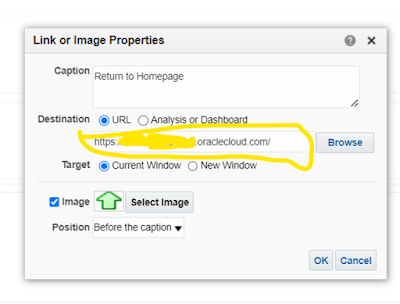
Also add a home page link to the dash board so that whenever we close the dashboard we will land to the oracle springboard page. 

For this add the oracle cloud home page link to the dash board.


Access custom dashboards on Oracle Cloud home springboard


Access custom dashboards on Oracle Cloud home springboard


3. Add the custom analysis to the springboard

Now the final step in the process is to add he custom dashboard created to the home page/springboard of oracle cloud.

For this first we will create a sandbox 

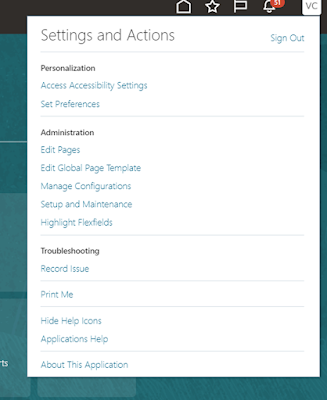
1. Go to setup and maintenance > Edit pages 

Access custom dashboards on Oracle Cloud home springboard

It will then prompt for the sandbox name. Give any name and enter into the sandbox. Your sandbox will be created.

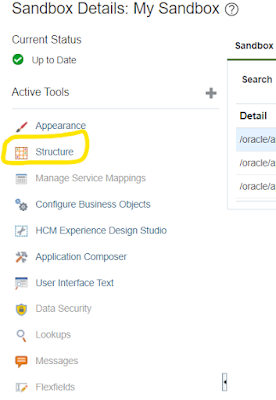
2. Click on structure 


Access custom dashboards on Oracle Cloud home springboard

3. Click on Create drop down arrow and select Create page entity 


Access custom dashboards on Oracle Cloud home springboard


4.  Give appropriate name and select the most relevant Icon which you want to be displayed on springboard. 


a) Under group select the header under which you want this to be displayed
b) Select show on navigator as "Yes" 

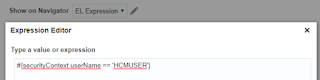
Note : here we have added this dashboard for all users. If you want this to be available for specific users you can do that by selecting option "EL Expression" 

Access custom dashboards on Oracle Cloud home springboard

c) Select link type as static URL 
d) Under destination give the dashboard URL 

Custom page created shown below 


Access custom dashboards on Oracle Cloud home springboard

Now the custom dashboard is added to the oracle cloud springboard. Publish the sandbox and verify the changes


Access custom dashboards on Oracle Cloud home springboard


Saturday, 13 May 2023

Key Reasons for ERP Implementation Failure: Key Factors to Consider


Avoiding ERP Implementation Failure: Key Factors to Consider


Implementing an Enterprise Resource Planning (ERP) system is a significant undertaking for any organization. While there are various reasons why ERP implementations can fail, it is essential to recognize these common pitfalls and take proactive steps to prevent them. By addressing these factors, businesses can increase their chances of successful ERP adoption and maximize the benefits it offers. Here are key considerations to avoid ERP implementation failure:

Key Reasons for ERP Implementation Failure


Outlined below are the top 6 key causes/reasons of ERP implementation failure and strategies to avoid encountering them:


1. Inadequate Planning and Strategy

Insufficient planning and lack of a clear strategy are primary reasons for ERP implementation failure. To avoid this, organizations should invest time and effort in comprehensive planning. This involves defining project goals, outlining a well-defined implementation roadmap, establishing realistic timelines, and allocating sufficient resources. A robust strategy ensures that all stakeholders understand the objectives and the steps involved in achieving them.


2. Poor Change Management:

Resistance to change can hinder the success of an ERP implementation. To mitigate this, organizations must prioritize change management throughout the process. Effective communication, employee involvement, and training programs are crucial for preparing the workforce to embrace the new system. By fostering a culture of change and providing support, businesses can alleviate resistance and increase user acceptance.


3. Insufficient User Engagement:

User engagement is vital for ERP implementation success. Inadequate involvement and consultation with end-users can lead to a lack of system acceptance and adoption. To overcome this challenge, organizations should actively involve end-users from the early stages of the project. Soliciting feedback, conducting user acceptance testing, and incorporating user preferences into the system design help ensure that the ERP system meets their needs and aligns with their workflows.


4. Inaccurate Data Migration:

Data migration is a critical aspect of ERP implementation. Errors in data mapping, cleansing, and migration can lead to inaccurate or incomplete information in the new system, undermining its effectiveness. To prevent this, businesses should invest in data cleansing and validation processes, ensure compatibility between the old and new systems, and conduct thorough testing before going live. By prioritizing data accuracy, organizations can maintain reliable and consistent information in the ERP system.


5. Insufficient Training and Support:

Lack of proper training and ongoing support for end-users can hinder successful ERP adoption. It is crucial to invest in comprehensive training programs that cover both technical aspects and process-specific training. Furthermore, providing ongoing support, such as helpdesk services and access to training resources, ensures that users have the necessary assistance during and after the implementation. Well-trained and supported users are more likely to utilize the ERP system effectively, maximizing its benefits.


6. Unrealistic Expectations and Scope Creep:

Setting unrealistic expectations or allowing scope creep can lead to project delays, budget overruns, and dissatisfaction. To mitigate this, organizations should establish clear project boundaries and realistic expectations from the outset. Regularly reviewing and reassessing project scope, documenting changes, and effectively managing stakeholder expectations help maintain project focus and prevent unnecessary complications.


In summary, by considering these key factors, organizations can significantly reduce the risk of ERP implementation failure. Adequate planning, change management, user engagement, data migration, training, and realistic expectations are essential components of a successful ERP implementation. By addressing these areas proactively, businesses can maximize the value and benefits derived from their ERP system.

Popular Posts